Merchant Portal MCP is now available
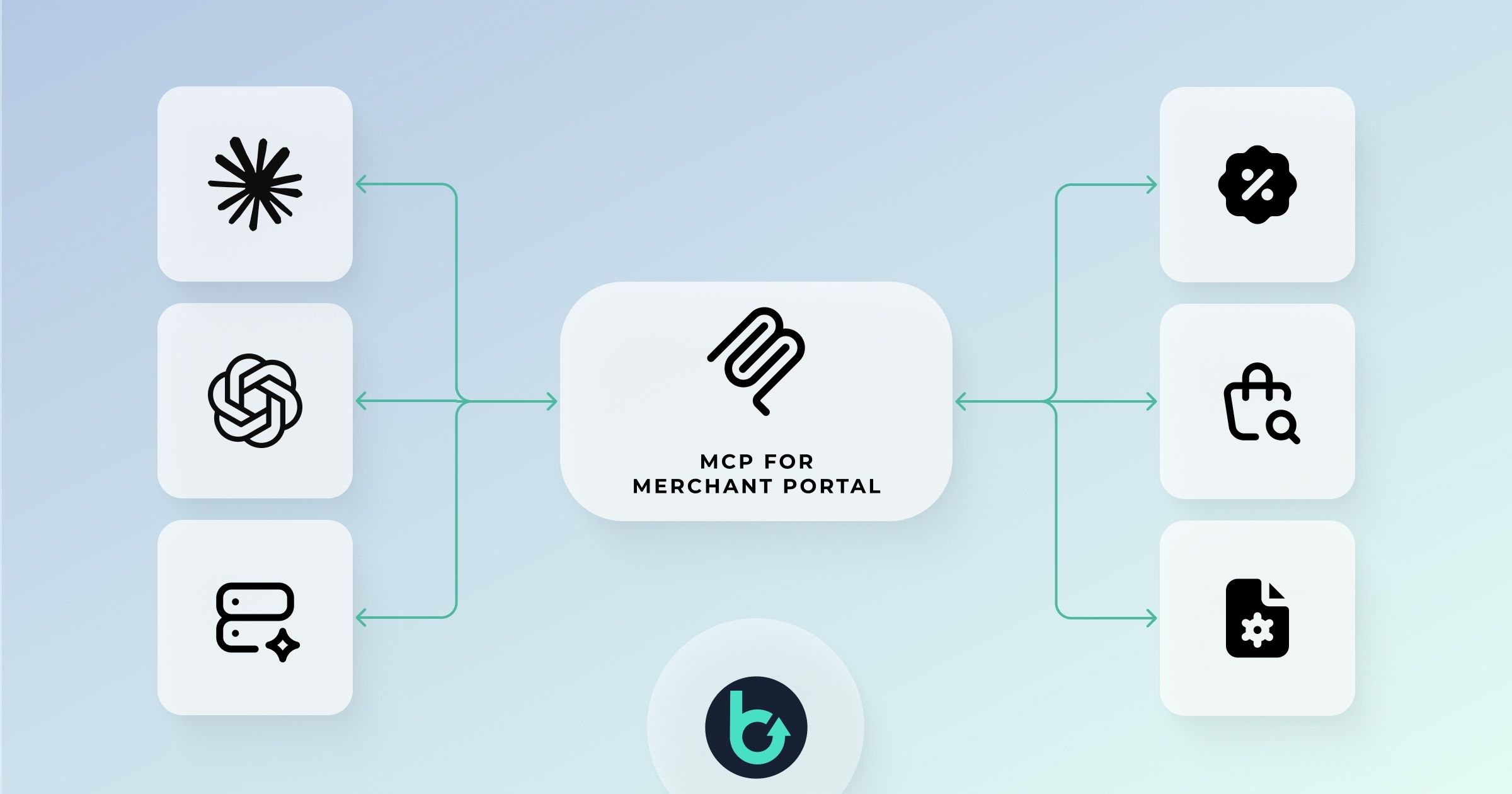
You can now run your Brink Commerce operations through your own AI agent.
What it is
The Merchant Portal MCP exposes the Brink Management and OMS APIs as tools that any standard-compliant AI client can use. Connect Claude, ChatGPT, or your own in-house framework, and manage your commerce engine in natural language: search orders, process refunds, configure markets, adjust inventory rules, and set up campaigns and discounts without navigating the admin UI.
It is built on the open Model Context Protocol, so there is no proprietary platform to adopt.
Why it matters
Faster operations. Workflows that used to span several screens complete in one instruction.
Same security model. Every action is scoped by the user's Merchant Portal role, validated against the API schema, and written to the audit log with full attribution. If a user cannot do it in the UI, their agent cannot either.
A path to automation. The same interface serves both human instructions and machine inputs, so a task you run by hand today can become a scheduled script, and later a fully autonomous agent, with no change to your integrations.
The traditional Merchant Portal UI remains unchanged.
How to get started
First, contact Brink to activate MCP access for your account.
Then connect your client and grant access:
1. Connect an LLM client (MCP)
Use the client ID and authorization URL below to connect your LLM client to the Brink Merchant MCP server. For all other setup steps, follow the instructions provided by your LLM client.
Client ID:
<client-id>Authorization URL:
<auth-url>MCP server URL:
<mcp-url>
Note: Your LLM client must support MCP over HTTP.
2. Add the MCP role to your user
In the Merchant Portal, go to Settings → Manage User → Access and add the MCP role to your user.