Release Notes

Follow new updates and improvements to Brink Commerce.

Customer Overview

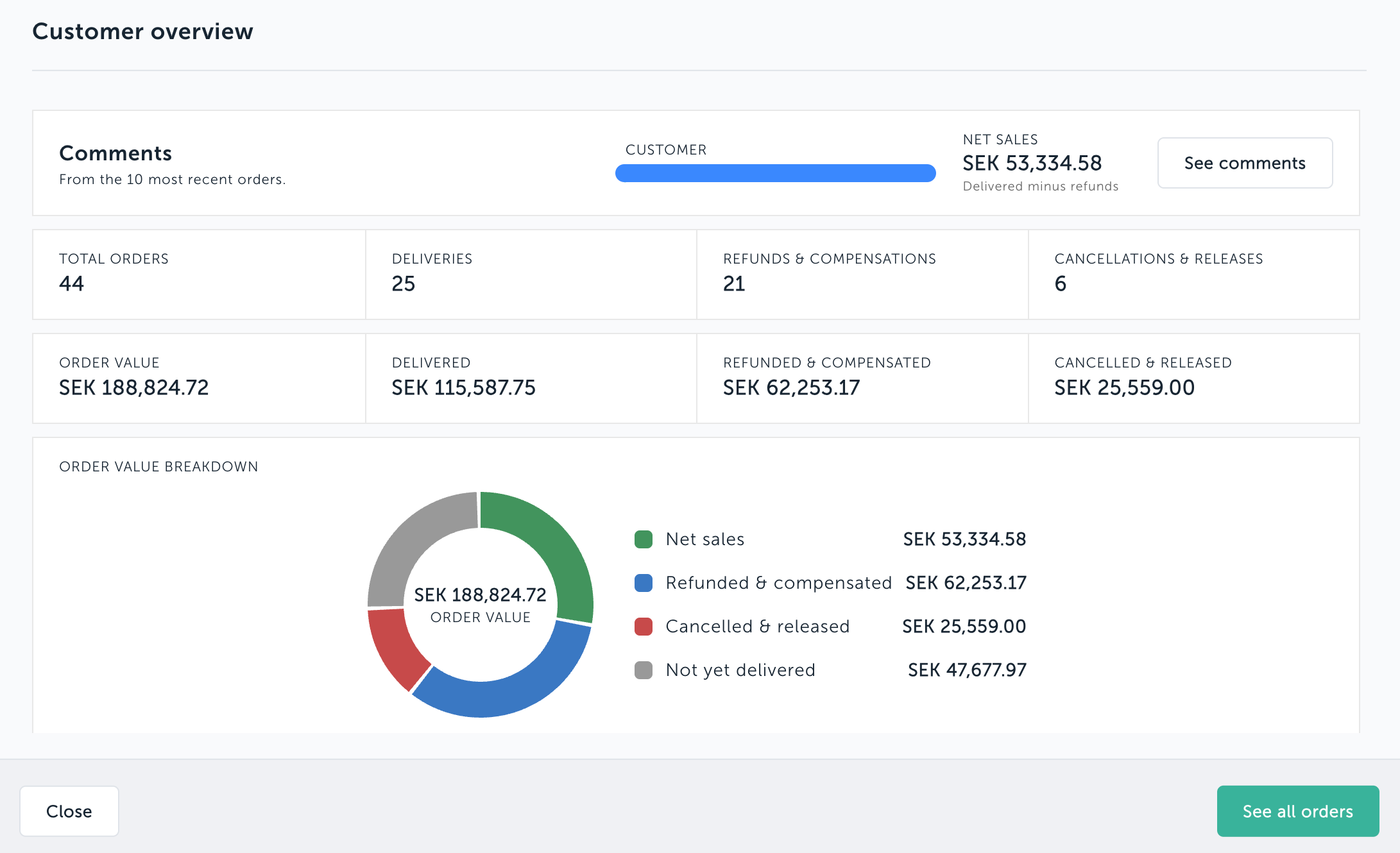
Get the full picture of a customer in one place, without leaving the order you are working on.

  • Customer card shows the customer's email and what they have actually paid for. Refunds and compensations are subtracted, and orders that have not shipped yet are not counted.

  • Order value breakdown is a chart that splits the total into kept, refunded and compensated, cancelled and released, and not yet delivered. Hover to see amounts.

  • Key numbers at a glance: total orders, deliveries, refunds and compensations, and cancellations and releases, plus the value of each.

  • Recent comments from the customer's ten latest orders are collected in one list, newest first. Click "See comments" to load them, and click any comment to jump to that order.

  • See all orders in a popup. The "See all orders" button on an order now opens the overview in a popup so you stay on the order. "Open customer page" still takes you to the full page.

  • Long order lists are easier to browse. The list shows 25 orders per page with previous and next buttons.
Improved

Updating our JSON views

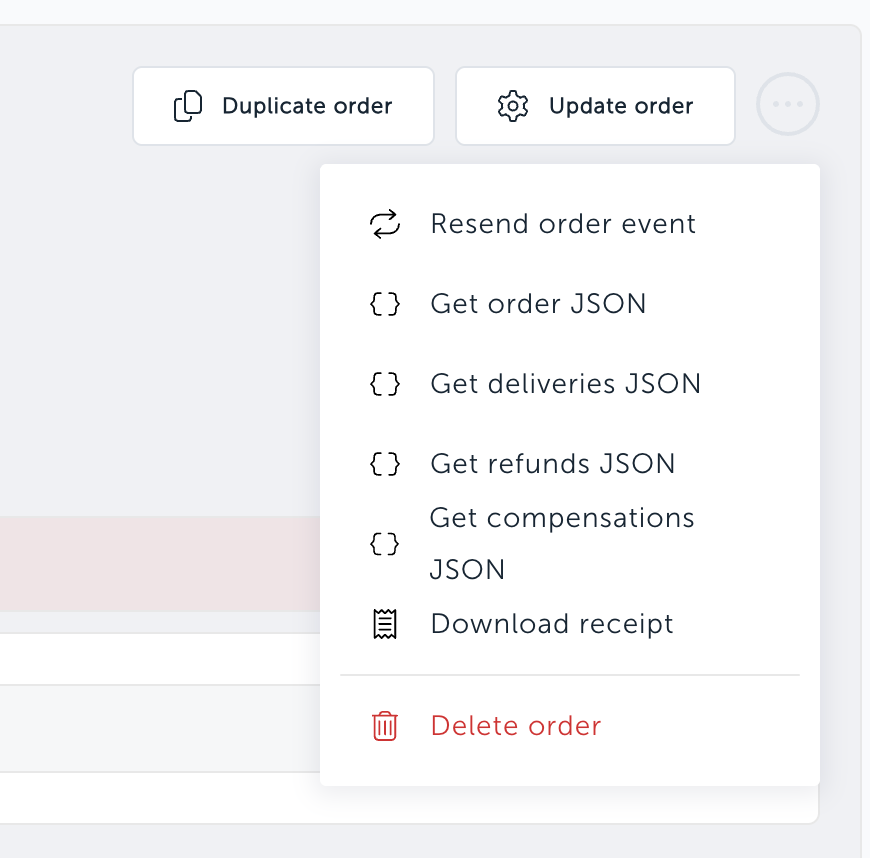
The "Get order JSON" action on the order view now shows exactly what the Order Management API returns, and you can download or copy it with one click.

What's new

  • Order JSON. The JSON window shows the raw response from the get order endpoint.

  • JSON for every operation. Orders with deliveries, refunds, releases, cancellations, compensations or modifications get a "Get … JSON" action for each.

    • Actions only appear when the order has that kind of operation.

  • Download JSON. A button in the JSON window saves the payload as a file, named after the resource and order it came from, for example deliveries-<orderId>.json.

  • Copy JSON. Copies the payload exactly as displayed and confirms with "Copied".

NewImproved

Updated UX flow

Create a request button — Step 1 of the Cancel order popup now includes a yellow secondary action that calls only createCancellation, closes the popup, and leaves the cancellation in a pending-draft state, ready for an integration or a colleague to finalize.

Permission-aware Step 1 — Users with create permission but no execute permission see only the Create a request button (positioned to the far right). Operators with execute permission see both Continue and Create a request, with tooltips explaining each path.

Cancel request on the order page — Pending cancellation drafts now show a destructive Cancel request button that calls deleteCancellation, replacing the previous in-modal Cancel update button.

For users with authority to create but not start operations:

For users with authority to create and start operations:

Improved

Earlier updates