Create and manage a Shipping tax group
A Shipping tax group is required for calculating and displaying the correct costs for shipping.
Written By Petter Johansson
Last updated 11 months ago
A Shipping tax group is required for calculating and displaying the correct costs for shipping. Creating a Shipping tax group in Brink Commerce allows you to manage the tax rates specifically applied to shipping services across different markets. The process is similar to creating a standard Tax group, with an additional step to assign the group as a Shipping tax group. This guide will walk you through the steps to create and assign a Shipping tax group in the Brink Commerce Merchant Portal.
Steps to Create a Shipping Tax Group
Navigate to Tax Groups
Open the Stores section and select Tax groups from the menu.
Add a New Tax Group
In the top right corner, click the + Add New Tax Group button.
Fill in Tax Group Details
Provide the following information:
Identifier: A unique number that identifies the Tax group.
Name: A descriptive name for the Tax group, such as “Shipping Services.”
Description: A brief description of the Tax group.
Once you’ve entered the details, click Save to create the Tax group.
Confirm and Add Tax Markets
After saving, a new dialog will open where you can:
Confirm Name and Description: Ensure the details you entered are correct.
Add a New Tax Market: Select the country where this Tax group will apply.
Configure Tax Market
After selecting the country, another dialog will open where you should:
Enter Tax Percentage: Input the desired tax percentage in decimals (e.g., enter 900 for 9%), using the percentage for shipping specifically.
Click “Save”: Save the Tax market settings.
Add Additional Tax Markets (Optional)
If needed, repeat the process to add more Tax markets by selecting additional countries from the list.
Assigning the Tax Group as a Shipping Tax Group
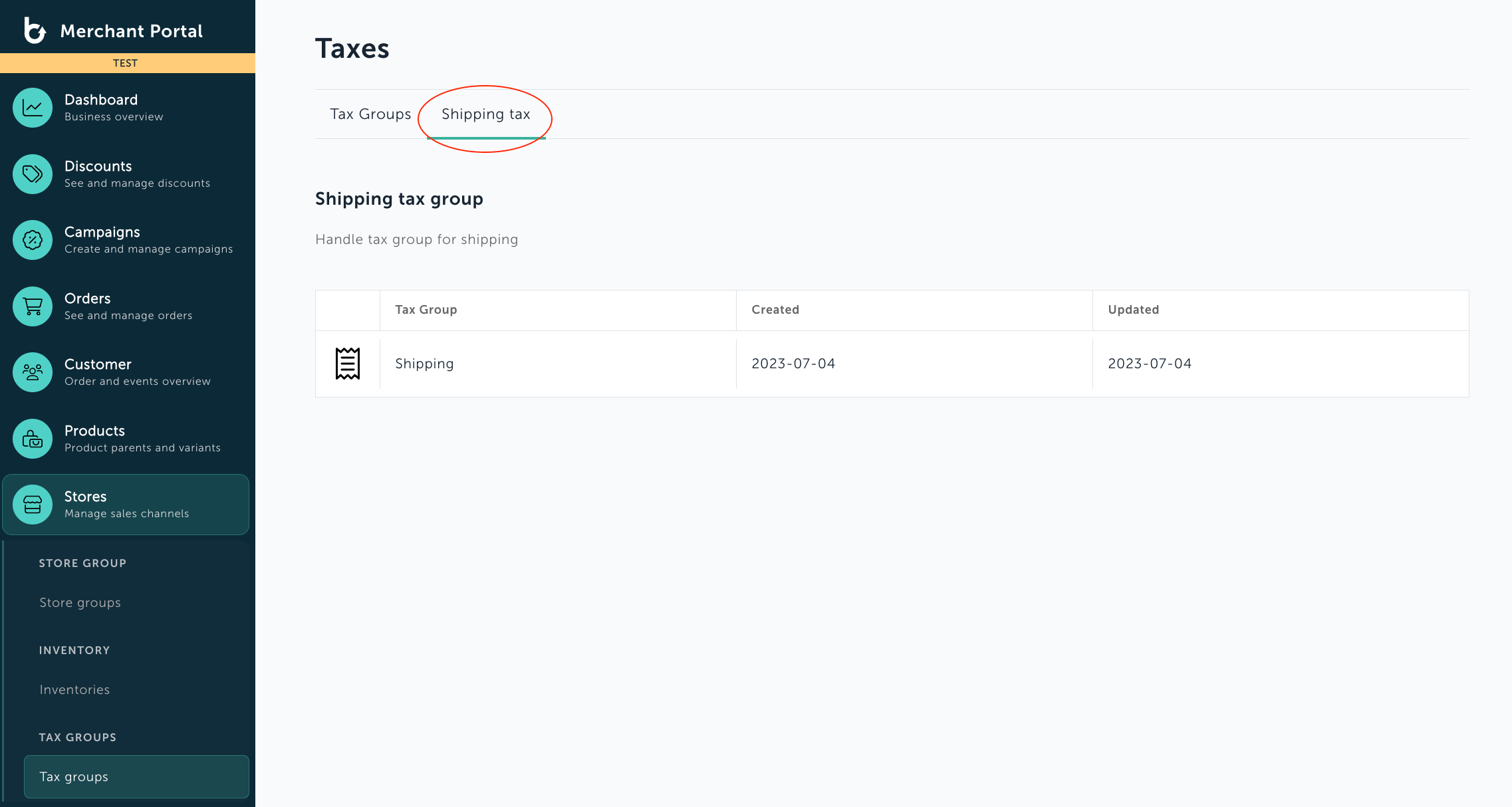
Navigate to the Taxes page
Select Stores in the menu and then select the Tax groups.
Select the Shipping Tax Tab
At the top of the page, click on the tab labeled Shipping tax.
Add a Shipping Tax Group
Click the + Add Shipping Tax Group button.
If one is selected already, click the name of the Tax group in the list to change it.
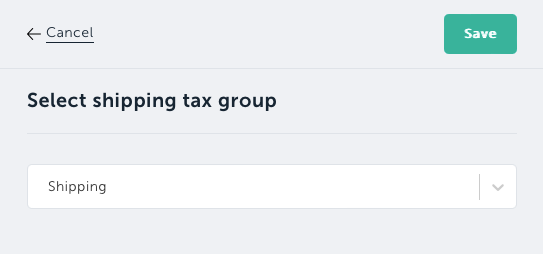
Select the Tax Group
From the list that appears, select the Tax group you want to use as the Shipping tax group.
After selecting the Tax group, click Save to assign it as a Shipping tax group.
Was this helpful?
Still need help? Ask the team