Add and manage order comments
Order comments in Brink Commerce allow team members to leave notes directly on an order. These comments help improve collaboration and maintain a clear history of actions.
Written By Petter Johansson
Last updated 11 months ago
Introduction
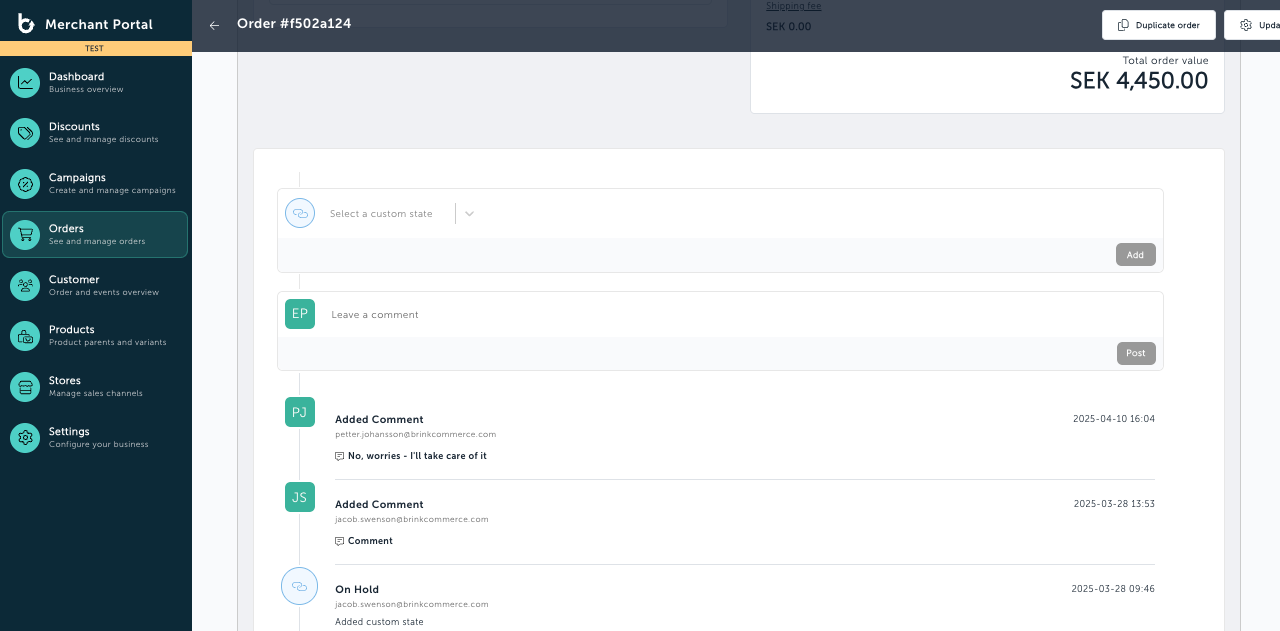
Order comments in Brink Commerce allow team members to leave notes directly on an order. These comments help improve collaboration and maintain a clear history of actions or observations tied to the order. Comments are visible in the History section and include the author’s name (email) and timestamp.
Steps to Add a Comment to an Order
1. Navigate to the Order
In the left-hand menu, go to Orders, then click Orders again.
2. Find the Order
Use the search or filter tools to locate the order you want to comment on.
3. Open the Order Details Page
Click on the order to open the Order Details view.
4. Scroll to the History Section
On the Order Details page, scroll down to the History section.
Here, you can see the full history of the order:
When the order was created
If the order was ever blocked
Any previous comments or actions
How to Add a Comment
1. Enter Your Comment
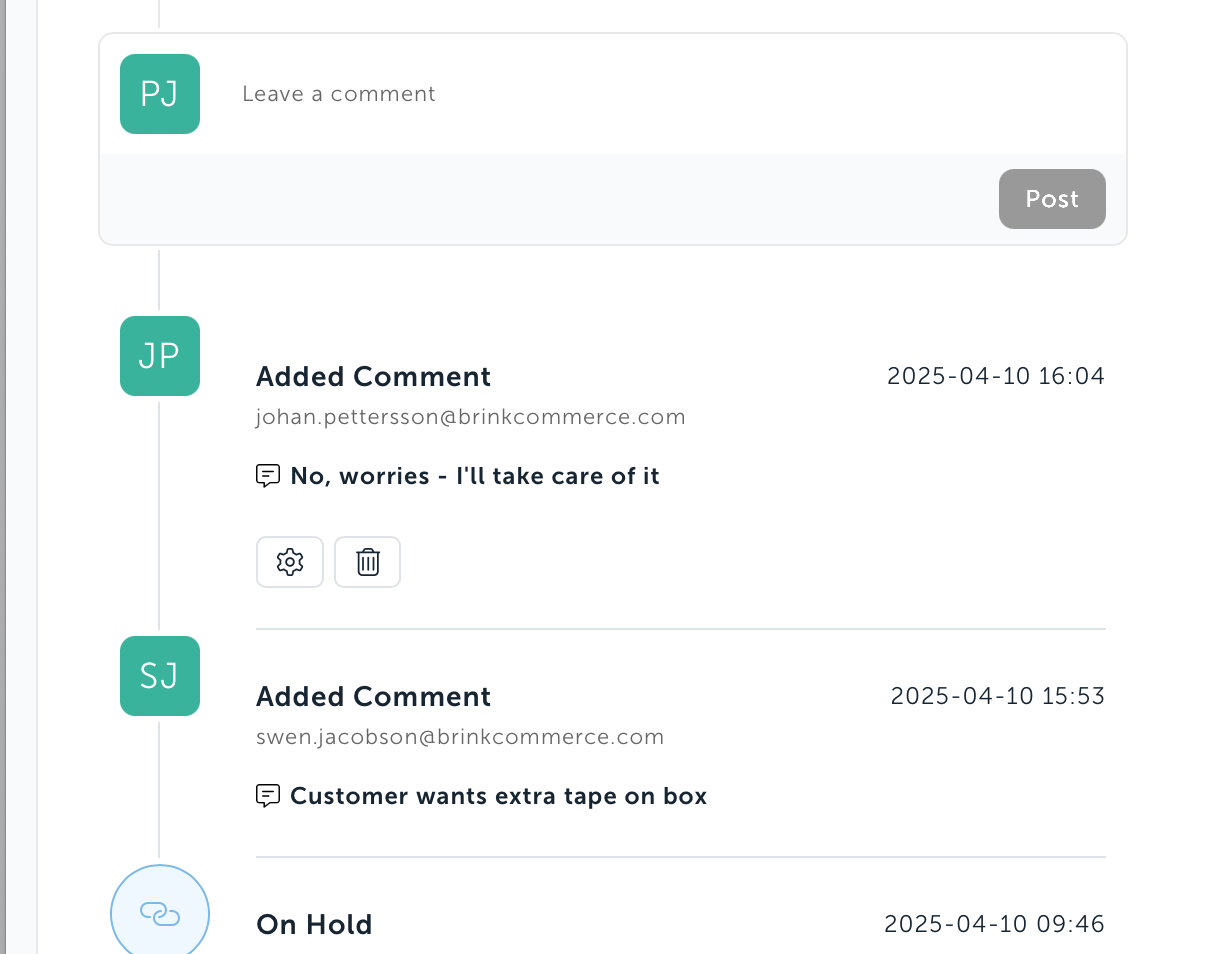
In the comment field within the History section, type your message.
2. Post the Comment
Click Post to save your comment.
Your comment will appear immediately in the history, tagged with your username (email) and timestamp.
Managing Your Comments
1. Edit or Delete Your Comment
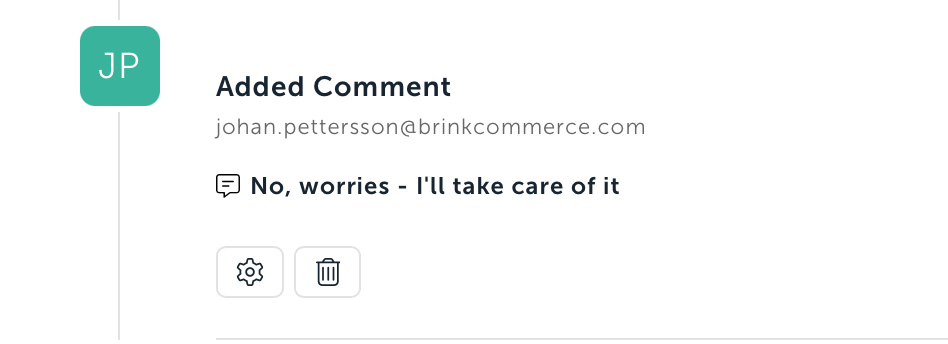
Beneath each of your own comments, you’ll see buttons to Edit or Delete.
Only you can edit or remove your own comments.
Other Ways Comments Can Be Added
Comments can also be left automatically or manually during specific actions, such as:
Initiating a compensation
Cancelling an order
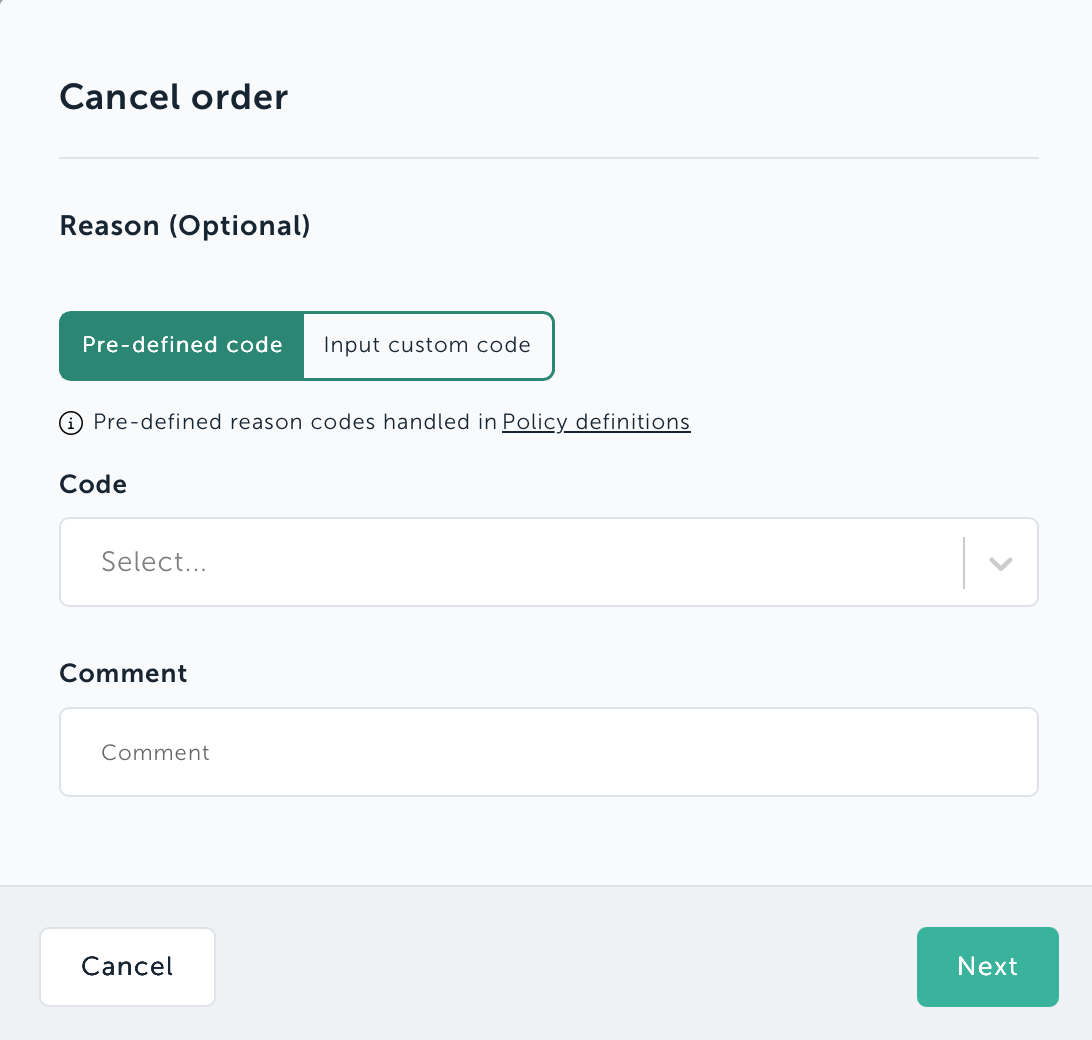
These comments will appear in the History, linked to the corresponding event for clear tracking.
Was this helpful?
Still need help? Ask the team