How to filter events
While any system can subscribe to events, sending every update to every destination may not always be necessary.
Written By Petter Johansson
Last updated 11 months ago
Introduction
Events in Brink Commerce are ‘signals” that keep different components of an ecosystem updated about order processing, stock changes, and other important activities. While any system can subscribe to these events, sending every update to every destination may not always be necessary. To optimize efficiency, Merchant Portal allows you to filter which events are sent to specific webhook destinations. This guide will show you how to configure event filtering.
Steps to Configure Event Filtering
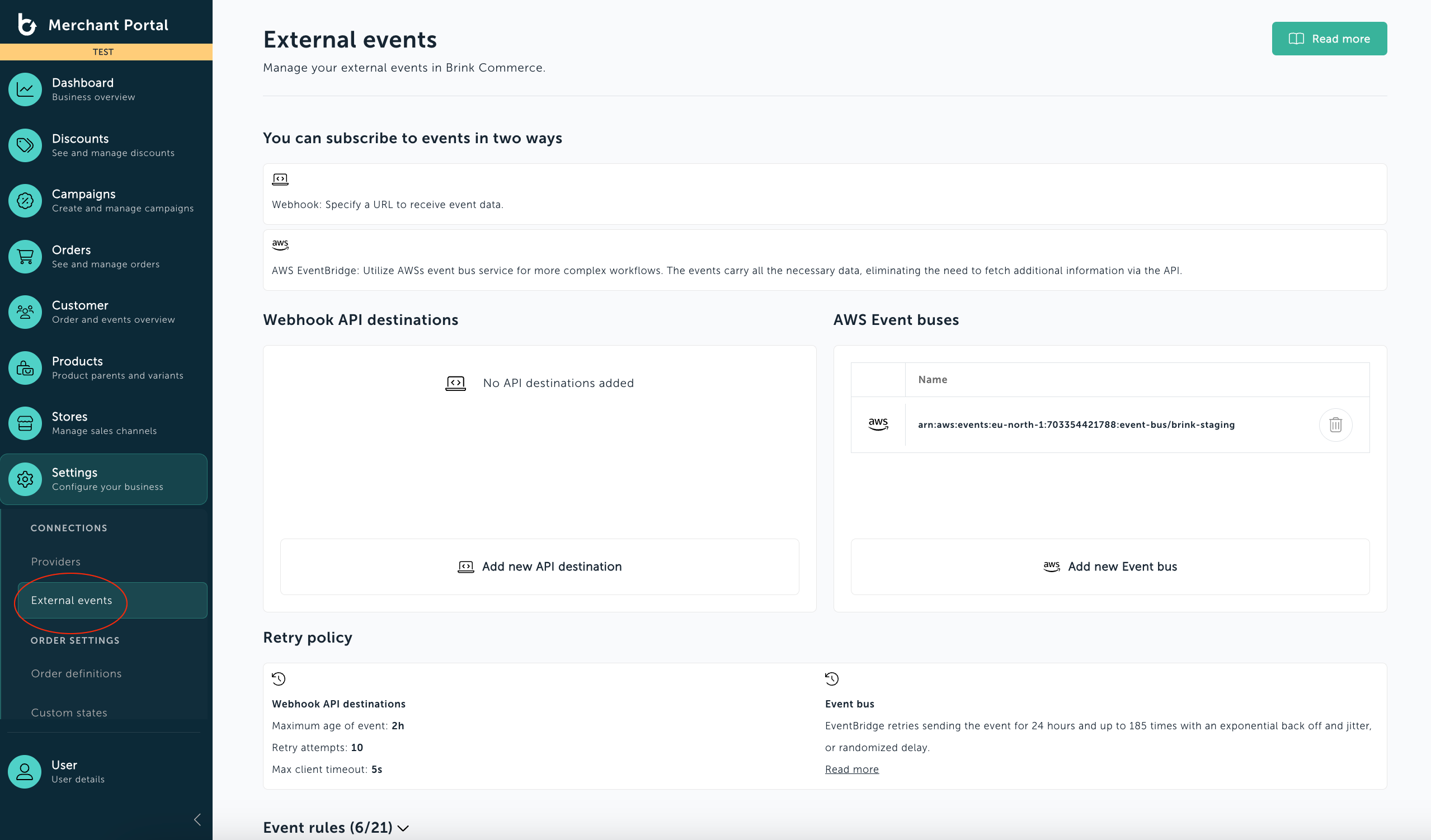
1. Navigate to Settings
Log in to the Merchant Portal.
In the left-hand menu, select Settings.
2. Access External Events
Click on External Events to manage webhook destinations.
3. Select Webhook Destination
Locate the webhook destination where you want to apply event filtering.
If needed, create a new webhook destination.
Choose any applicable endpoint for your setup.
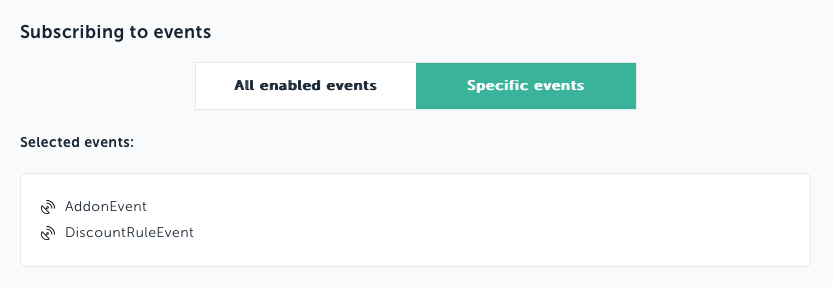
4. Enable Specific Event Filtering
Please note: Any new event that is added to the API (new features etc.), is disabled by default. You need to enable it. which will add it to the destinations that have “all events” enabled. Once enabled, you can apply the filter you need.
Find the toggle bar labeled All Events / Specific Events.
Select Specific Events to refine the event selection.
5. Choose Events to Listen To
Click on the events you want this endpoint to receive, such as:
OrderCreated – Triggered when a new order is created.
OrderDelivered – Triggered when an order has been successfully delivered.
StockUpdated – Triggered when inventory stock levels change.
Was this helpful?
Still need help? Ask the team